
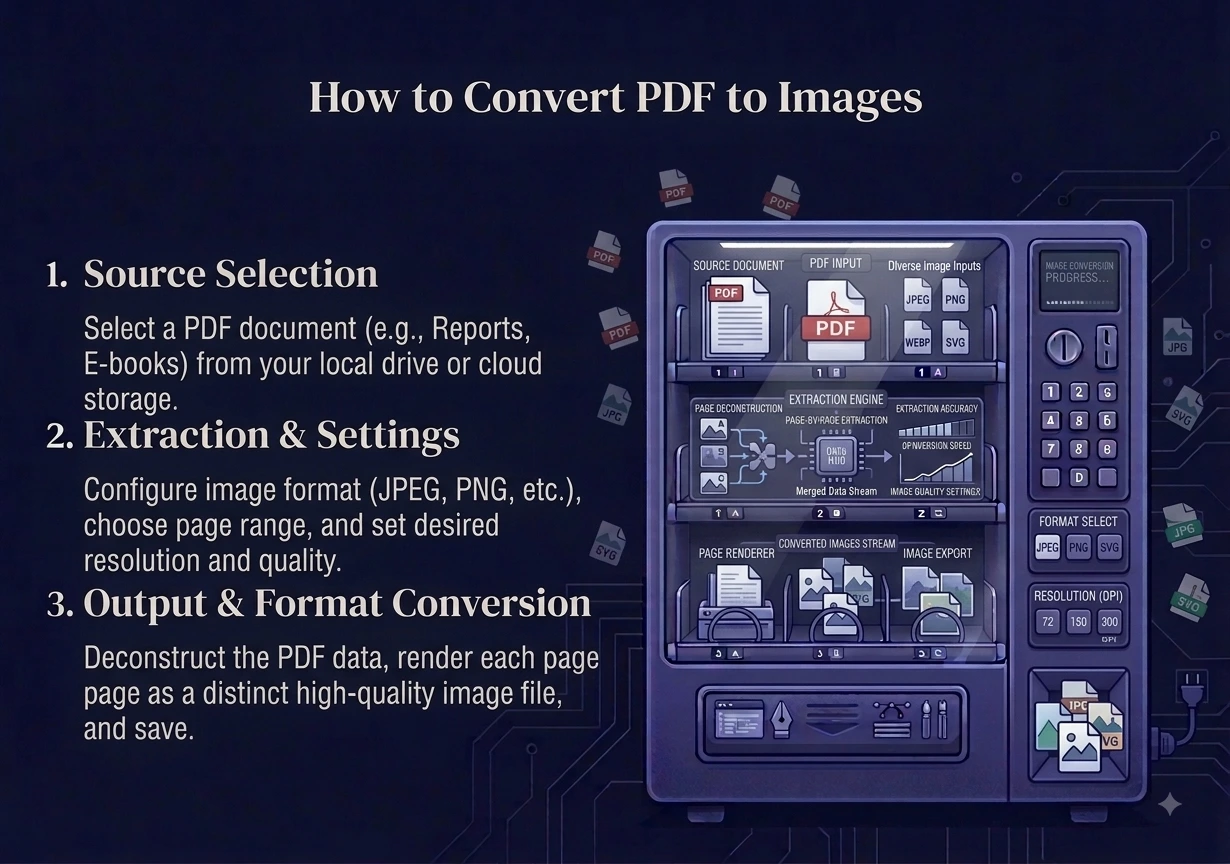
You can convert PDF to images right in your browser. The tool turns every page of your PDF into a separate JPG or PNG, and you can download them all together in one ZIP. There is no software to install, no sign-up, and nothing is uploaded to a server. Whether you need one page or the whole document, it takes just a few seconds.
In this guide you will learn why people convert PDF to images, how to do it step by step, how to pick between JPG and PNG, and how to grab only the pages you want.
Why Convert a PDF to Images?
Sometimes a PDF is not the format you need. An image is easier to drop into a slide, post on social media, or preview at a glance. You can read more about the PDF format on its Wikipedia page.
Common reasons to convert PDF to images:
- Adding a PDF page to a PowerPoint slide or a document.
- Posting a page as a picture on social media or a chat.
- Showing a preview without making someone open a PDF.
- Pulling one chart, receipt, or page out as a standalone image.
- Using a page in a photo editor that does not open PDF files.
How to Convert PDF to Images (Step by Step)
Our free tool handles this fully in your browser. Here is the process.
- Open our PDF to JPG converter or PDF to PNG converter.
- Add your PDF file, or drag and drop it. You can add up to 5 PDF files at once.
- Leave the page box empty to convert every page, or type a range like “1-5” or “2, 4, 6” to pick only the pages you want.
- Click convert.
- Download each image, or grab them all in one ZIP.
Each page becomes its own image file, named clearly by page number. This makes it easy to find the exact page you need.
Every Page, Not Just the First
This is a key point. Some free converters only give you the first page of a PDF. Ours does not. By default it converts every single page of your document into an image. If your PDF has 30 pages, you get 30 images. And if you only want a few, you can type a page range and get just those. You stay in full control.
JPG or PNG: Which Should You Pick?
Both work well, but they suit different needs.
- Choose JPG when the PDF has photos or you want the smallest files. JPG is great for sharing and uploading. Use our PDF to JPG tool.
- Choose PNG when the PDF has sharp text, lines, or charts, and you want the crispest result. PNG keeps edges clean. Use our PDF to PNG tool.
If you are not sure, JPG is the safe pick for most everyday needs. For a deeper look, see our PNG vs JPG guide.
How to Convert Only Certain Pages
You do not have to convert the whole PDF. In the page box, type exactly what you need:
- “3” gives you only page 3.
- “1-5” gives you pages 1 through 5.
- “2, 4, 6” gives you those three pages.
- Leave it blank to convert the entire document.
This saves time and keeps your download tidy when you only need part of a long file.
Is It Safe to Convert a PDF Online?
Yes, on our site it is safe. Most converters send your PDF to a server. Ours does not. The whole job runs inside your browser, so your PDF and the images it creates never leave your device. Nothing is uploaded and nothing is stored. It is free, with no watermark and no account. That makes it safe for contracts, bank statements, and any private document.
Frequently Asked Questions
How do I convert PDF to images for free? Add your PDF to a free browser tool, choose JPG or PNG, and click convert. Every page becomes an image, and your file never leaves your device.
Does it convert all pages or just the first one? It converts every page by default. You can also type a page range like “1-5” to pick only the pages you want.
Can I convert PDF to JPG and PDF to PNG? Yes. Use the PDF to JPG tool for small, share-friendly images or PDF to PNG for the sharpest text and charts.
How many PDFs can I convert at once? You can add up to 5 PDF files at a time and download all the images together in one ZIP.
Will the images be clear? Yes. Each page is rendered at a high resolution, so text and details stay sharp for screen and light printing.
Is it safe to convert private PDFs? Yes. The whole process runs in your browser, so your PDF and images are never uploaded or stored anywhere.
Final Thoughts
When you convert PDF to images, you get flexible files you can drop into slides, posts, or editors with ease. The best part is control. Our tool turns every page into a JPG or PNG, or just the pages you choose, and lets you download them all in one ZIP.