
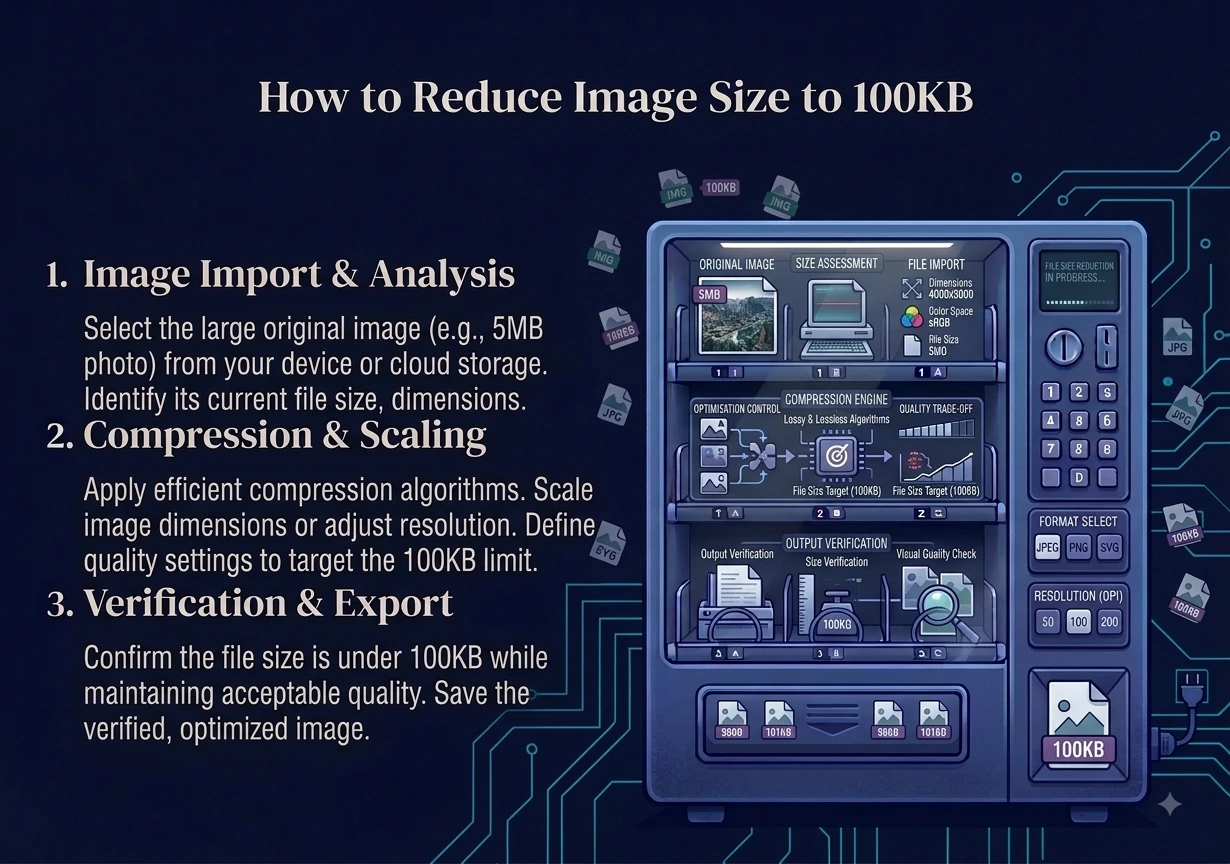
You can reduce image size to 100KB right in your browser. The trick is to use a compressor with a target size, set it to 100 KB, and let the tool find the right quality for you. It runs in seconds, needs no software, and nothing is uploaded to a server. This is the fastest way to hit a strict upload limit without ruining your photo.
Many forms, job portals, and websites cap uploads at 100 KB or 200 KB. In this guide you will learn how to reduce image size to 100KB step by step, why the file gets so large in the first place, and simple tricks to keep the picture looking good.
Why Is My Image So Large?
Modern phone cameras take huge photos. A single picture can be 4000 pixels wide and several megabytes in size. That is far more than a web form needs. Two things drive the size up:
- Dimensions. More pixels means more data. A 4000-pixel-wide photo holds many times more pixels than a 1000-pixel one.
- Format and quality. A photo saved at full quality, or in a heavy format, takes more space.
To reduce image size to 100KB, you work on both of these. You lower the pixel count where you can, then compress the quality just enough to hit your target.
How to Reduce Image Size to 100KB (Step by Step)
Our free tool makes this simple, and it does the math for you.
- Open our Image Compressor.
- Add your photo, or drag and drop up to 10 images at once.
- Tick the box that says “Target a maximum file size (KB).”
- Type 100 in the box.
- Click compress and download your smaller image.
The tool then lowers the quality step by step until your file lands under 100 KB. You do not have to guess a quality percentage. It finds the sweet spot for you.
One thing to know. To reach a small size like 100 KB, the tool saves your image as a JPG, because JPG compresses far better than PNG for this job. This means a transparent background will turn solid. If you need transparency, 100 KB may not be possible for a detailed image.
Trick 1: Resize the Dimensions First
This is the most powerful step, and people skip it. If your photo is 4000 pixels wide but the form only shows it at 800 pixels, all those extra pixels are wasted weight. Shrink the width first, and the file gets much smaller before you even touch quality.
Use the resize tool in our image tools and set a sensible width, like 1000 to 1200 pixels. Often this one step gets you close to 100 KB on its own, and the compressor finishes the job with almost no visible quality loss.
Trick 2: Convert to WebP for Even Smaller Files
If the website accepts WebP, it is your friend. WebP compresses better than JPG, so you can hit a small size at higher quality. According to Google’s WebP guide, WebP images are often 25 to 34 percent smaller than JPG. Use our JPG to WebP or PNG to WebP tool.
Tips to Keep Quality High
You can reduce image size to 100KB and still look sharp if you follow these:
- Resize first, then compress. Fewer pixels means less to compress.
- Start from a good original. You cannot recover detail that is already gone.
- Do not aim lower than you need. If the limit is 100 KB, target 100, not 20.
- Check the result. If it looks fine at normal size, you are done.
- For simple graphics or logos, try 200 KB first, since sharp lines suffer more from heavy compression.
Is It Safe to Compress Images Online?
Yes, on our site it is. Most compressors upload your photo to a server. Ours does not. The whole process runs inside your browser, so your images never leave your device. Nothing is uploaded and nothing is stored. It is free, with no sign-up and no watermark. Your files stay private the entire time.
Frequently Asked Questions
How do I reduce image size to 100KB for free? Use a free browser compressor, tick the target size box, and enter 100. The tool lowers the quality until your file is under 100 KB, and it never leaves your device.
Why does my image lose transparency at 100 KB? To reach a small size, the tool saves as JPG, which does not support transparency. If you need a see-through background, a very small size may not be possible.
Will my photo look bad at 100 KB? Not if you resize first. Shrinking the pixel count means the compressor does less work, so the photo stays sharp.
What is the best way to hit an exact size limit? Resize the dimensions to what you actually need, then use a target-size compressor. Together they hit the limit while keeping quality high.
Can I reduce many images at once? Yes. You can add up to 10 images at a time and compress them together, then download them all.
Is it safe to compress private photos? Yes. The whole process runs in your browser, so your images are never uploaded or stored.
Final Thoughts
To reduce image size to 100KB, you do not need to guess or install anything. Resize the photo to the size you really need, then use a target-size compressor set to 100 KB. The tool handles the rest and keeps your picture looking good. For even smaller files, convert to WebP where the site allows it.
When you are ready, our free image compressor gets you under 100 KB in seconds. Everything runs in your browser, so your images stay private and never leave your device.