
HEIC vs JPG comes down to one simple trade-off. HEIC gives you smaller files with the same quality, which is why the iPhone uses it. JPG works on almost every device and website, which makes it the safe choice for sharing. So HEIC saves space, and JPG saves you compatibility headaches.
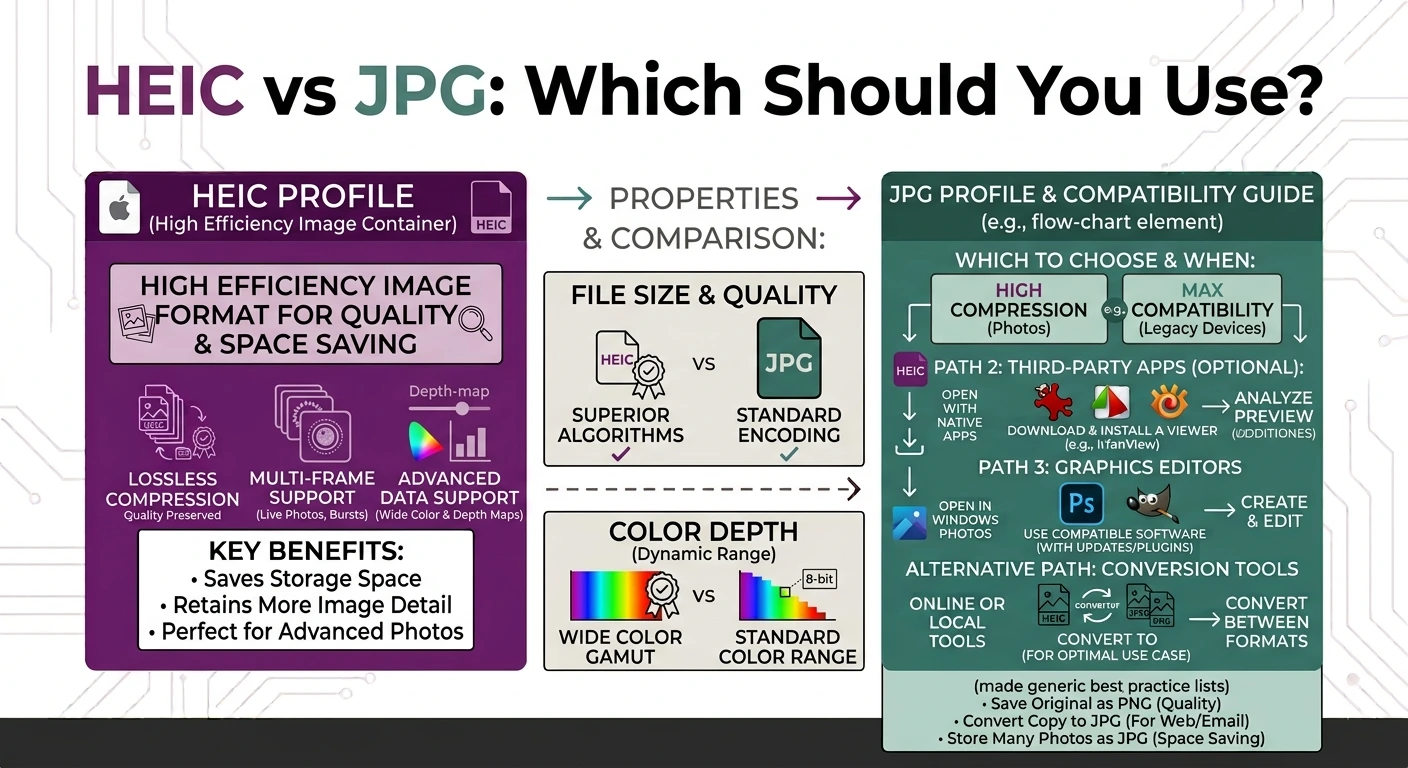
That is the short answer, but the right pick depends on what you are doing. In this guide you will learn what each format is, how they compare on size, quality, and support, and when to choose one over the other. You will also see how to convert HEIC to JPG for free when you need to.
What Is an HEIC File?
HEIC stands for High Efficiency Image Container. Apple made it the default photo format on the iPhone starting with iOS 11 in 2017. It is based on the HEIF standard and uses HEVC compression, which is a modern method that packs more detail into less space. You can read Apple’s own overview on the Apple Support page about HEIF.
The big win with HEIC is size. An HEIC photo is often around half the size of the same photo saved as a JPG, and it still looks just as good. This lets you store many more photos on your phone without filling it up.
The downside is support. HEIC opens easily on Apple devices, but many websites, older apps, and non-Apple systems do not accept it without extra steps.
What Is a JPG File?
JPG, also written as JPEG, has been around since the early 1990s. It is a lossy format, which means it drops a small amount of detail to keep files small. Almost every camera, phone, app, and website supports JPG. You can learn more about the standard on its Wikipedia page.
JPG is not as efficient as HEIC. A JPG file is usually larger for the same quality. But it makes up for that with one huge advantage. It works everywhere with no setup. When you upload a photo, email it, or print it, JPG almost never causes a problem.
HEIC vs JPG: The Main Differences
This table sums up the HEIC vs JPG battle at a glance.
| Feature | HEIC | JPG |
|---|---|---|
| File size | Smaller (about half) | Larger |
| Quality per MB | Higher | Lower |
| Compatibility | Apple and newer devices | Works almost everywhere |
| Transparency | Yes | No |
| Live Photos | Supported | Not supported |
| Best for | Saving space on iPhone | Sharing and uploading |
File Size: HEIC Wins
If storage is your concern, HEIC is the clear winner. Because it uses newer compression, it fits the same image quality into a much smaller file. On a phone packed with thousands of photos, that saving really adds up. This is the main reason Apple switched to it.
Quality: A Close Call
At the same file size, HEIC usually looks better than JPG because it keeps more detail. It also handles a wider range of colors and brightness, which helps with photos of sunsets or bright windows. For everyday photos, though, a good JPG still looks great, so most people will not spot a difference once the image is shared online.
Compatibility: JPG Wins by a Mile
This is where JPG takes the lead. A JPG opens on any phone, any computer, and any website with zero effort. HEIC often needs an extra codec on Windows, and many upload forms and older programs reject it outright. If you plan to send a photo to someone or post it online, JPG is the safer bet.
When to Use HEIC
Stick with HEIC when:
- You are storing photos on an iPhone or iPad and want to save space.
- You stay inside the Apple ecosystem, like sharing through AirDrop or iCloud.
- You want to keep the best quality at the smallest size.
When to Use JPG
Switch to JPG when:
- You are uploading a photo to a website, form, or social media.
- You are sending photos to someone who does not use Apple devices.
- You are printing images at a shop or on most printers.
- You want a file that opens anywhere without any codec.
Should You Convert HEIC to JPG?
For most sharing situations, yes. Keep your originals in HEIC to save space, then convert a copy to JPG whenever you need to send or upload it. This gives you the best of both worlds. You save storage and you avoid compatibility problems. If you want to keep transparency or sharp edges, convert to PNG instead.
How to Convert HEIC to JPG or PNG for Free
You do not need to install anything. Our free tools do the job in your browser in seconds.
- To get a small, share-friendly photo, use our HEIC to JPG converter.
- To keep transparency and full quality, use our HEIC to PNG converter.
Both work the same easy way:
- Add your HEIC files, or drag and drop up to 10 at once.
- The files convert right away.
- Download each photo, or grab them all in one ZIP.
The best part is privacy. Everything runs inside your own browser, so your HEIC photos never leave your device. Nothing is uploaded and nothing is stored. It is free, with no sign-up and no watermark.
Frequently Asked Questions
Is HEIC better than JPG? In the HEIC vs JPG comparison, HEIC is better for saving space and keeping quality, while JPG is better for sharing because it works everywhere. Neither is best for every job.
Why does my iPhone save photos as HEIC? Apple uses HEIC by default because it stores photos at about half the size of JPG with the same quality. This lets you keep more photos on your phone.
Does converting HEIC to JPG lose quality? There is only a tiny quality change, and most people never notice it. If you want zero loss, convert to PNG instead.
Can I make my iPhone take JPG photos instead? Yes. Go to Settings, then Camera, then Formats, and choose “Most Compatible.” Your iPhone will then save new photos as JPG.
Do I need special software to open HEIC on Windows? Windows needs the free HEIF Image Extension to open HEIC files. To skip that, just convert the file to JPG in your browser first.
Which format is smaller, HEIC or JPG? HEIC is smaller. It is usually about half the size of a JPG at the same quality, thanks to newer compression.
Final Thoughts
The HEIC vs JPG choice is not about which format is “best” overall. It is about the job in front of you. Choose HEIC to save space on your Apple devices. Choose JPG when you need a file that opens and uploads anywhere without trouble. Many people do both. They keep HEIC originals and convert JPG copies when needed.
When that moment comes, our free HEIC to JPG and HEIC to PNG tools make it quick. Everything runs in your browser, so your photos never leave your device and stay completely private.