
You can compress image without losing quality by using the right method, and it is easier than most people think. The trick is to remove the data your eyes do not notice while keeping the detail they do. Do it well, and your photo looks the same, but the file gets much smaller.
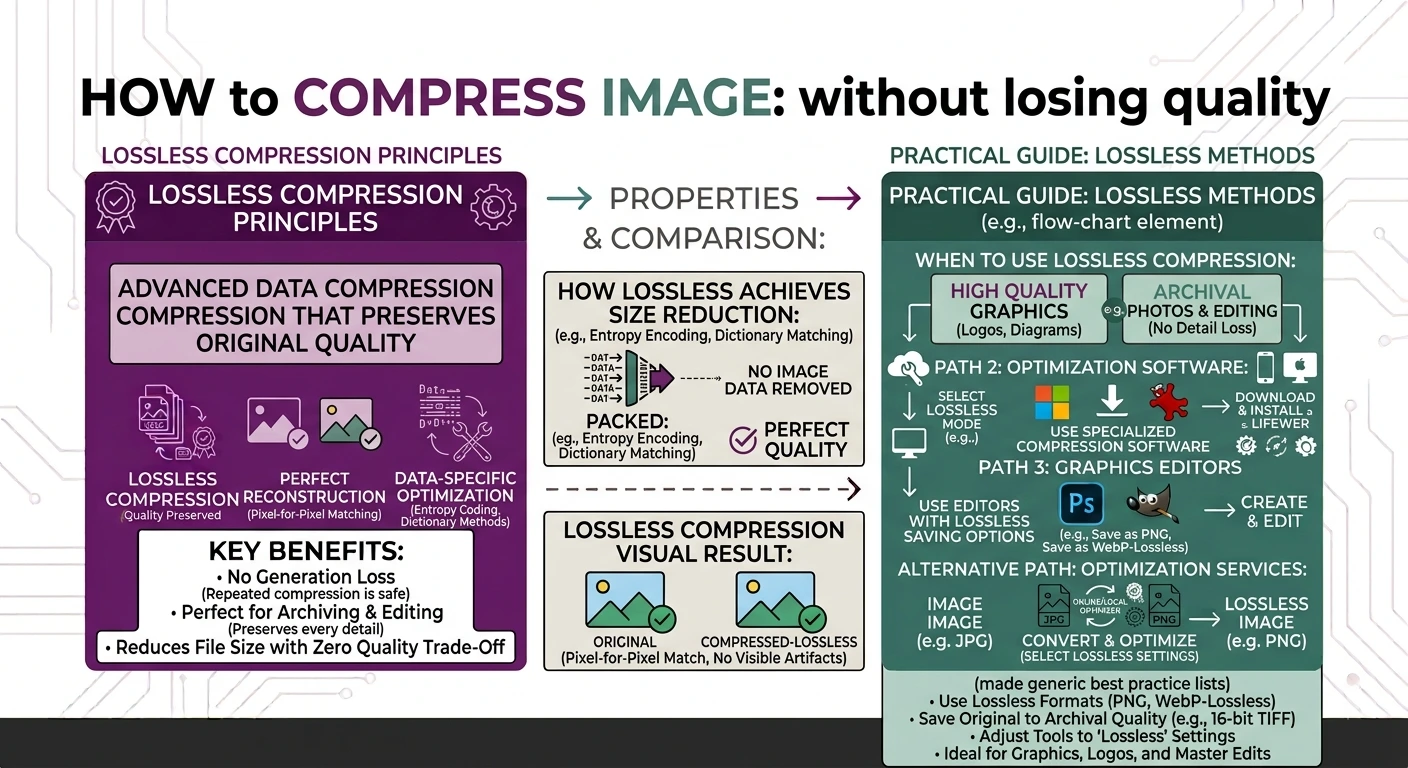
In this guide you will learn the real methods that shrink a photo without hurting how it looks. You will see the difference between lossy and lossless, which format saves the most space, and the fastest free way to compress an image right in your browser.
Can You Really Compress an Image Without Losing Quality?
Here is the honest truth. There are two types of compression, and the answer depends on which one you use.
- Lossless compression shrinks the file with zero quality loss. Every pixel stays exactly the same. The savings are smaller, but the image is untouched.
- Lossy compression removes tiny details your eyes barely see. The savings are much bigger, and if done gently, the photo still looks perfect to a normal viewer. This is often called “visually lossless.”
So when people say they want to compress image without losing quality, they usually mean visually lossless. The photo should look identical at normal viewing size, even if a computer could measure a tiny change. That is very achievable, and this guide focuses on it.
Method 1: Resize the Image Dimensions
This is the most powerful trick, and people forget it. A photo straight from a phone can be 4000 pixels wide. But a website or a document only needs about 1200 to 1600 pixels wide. The extra pixels just add weight.
If you shrink the width to what you actually need, the file size drops a lot and the visible quality stays the same on screen. To do this, use our image resizer inside the image tools and set a sensible width. This one step alone often cuts the file size by more than half.
Method 2: Convert to WebP
WebP is a modern image format from Google. It compresses better than both JPG and PNG, so you get a smaller file at the same quality. According to Google’s WebP guide, WebP images are often around 25 to 34 percent smaller than JPG.
If you want to compress image without losing quality that you can see, converting to WebP is one of the easiest wins. Use our free PNG to WebP or JPG to WebP tools. The photo looks the same, but the file is noticeably lighter.
Method 3: Use a Smart Compressor with a Target Size
Sometimes you need the file under a certain size, like below 500 KB for an upload. A smart compressor lets you set a target and does the math for you. It lowers the quality just enough to hit your goal, and no more.
Our image compressor does exactly this. You can compress an image down to your target while keeping it as sharp as possible. It finds the sweet spot so you do not overdo it.
Method 4: Pick the Right Format for the Job
The format you choose changes how well an image compresses.
- Photos: use JPG or WebP. They handle smooth colors and gradients very well.
- Logos, text, and screenshots: use PNG or WebP. They keep sharp lines clean.
- Anything for the web: WebP is usually the smallest.
Choosing the wrong format wastes space. A photo saved as PNG, for example, can be several times larger than the same photo as JPG, with no visible benefit.
Simple Tips to Keep Quality High
Follow these to compress image without losing quality that shows:
- Always start from the best original you have. You cannot add back detail that is already gone.
- Resize first, then compress. Fewer pixels means a smaller file before you even touch quality.
- Do not re-save a JPG many times. Each save loses a little more. Keep an original and export copies.
- For photos, aim for a quality setting around 75 to 85 percent. This is the sweet spot where the eye sees no change but the file shrinks a lot.
- Compare before and after. If you cannot see a difference, your compression was a success.
How to Compress an Image Without Losing Quality for Free
Here is the quick path, all in your browser:
- Open our image compressor.
- Add your photo, or drag and drop up to 10 images at once.
- Set a target size or quality level.
- Download your smaller, sharp image.
Everything happens inside your browser, so your images never leave your device. There is no upload, no sign-up, no watermark, and no cost. Your files stay private the whole time.
Frequently Asked Questions
Can you compress an image without losing any quality at all? Yes, with lossless compression, but the savings are small. For bigger savings, gentle lossy compression keeps the photo looking the same to your eye, which most people call “without losing quality.”
What is the best way to compress image without losing quality? Resize the image to the size you actually need, then convert it to WebP or use a smart compressor. Together these shrink the file a lot while keeping it sharp.
Does resizing an image reduce its quality? Making an image smaller does not hurt visible quality on screen, and it cuts the file size a lot. Making an image larger is what causes blur, so avoid upscaling.
Which format compresses the smallest? WebP usually gives the smallest file at the same quality. JPG is a close second for photos. PNG is best for graphics but makes larger files.
Why is my image still blurry after compressing? Blur usually comes from setting the quality too low or from enlarging a small image. Start from a high-quality original and use a gentle setting.
Is it safe to compress photos online? On our site, yes. The whole process runs in your browser, so your photos never leave your device and are never stored.
Final Thoughts
You now know how to compress image without losing quality that anyone would notice. The winning combo is simple. Resize the photo to the size you really need, pick the right format like WebP, and use a smart compressor to hit your target. Do that, and your files get much lighter while still looking sharp.
When you are ready, our free image compressor and WebP converters get it done in seconds. Everything runs in your browser, so your images stay private and never leave your device.