
You can combine images into PDF in seconds. Just add your photos to a free tool, put them in the order you want, and download them as one single PDF. No software, no sign-up, and nothing gets uploaded to a server. This is the easiest way to turn a set of pictures into one tidy document you can share or print.
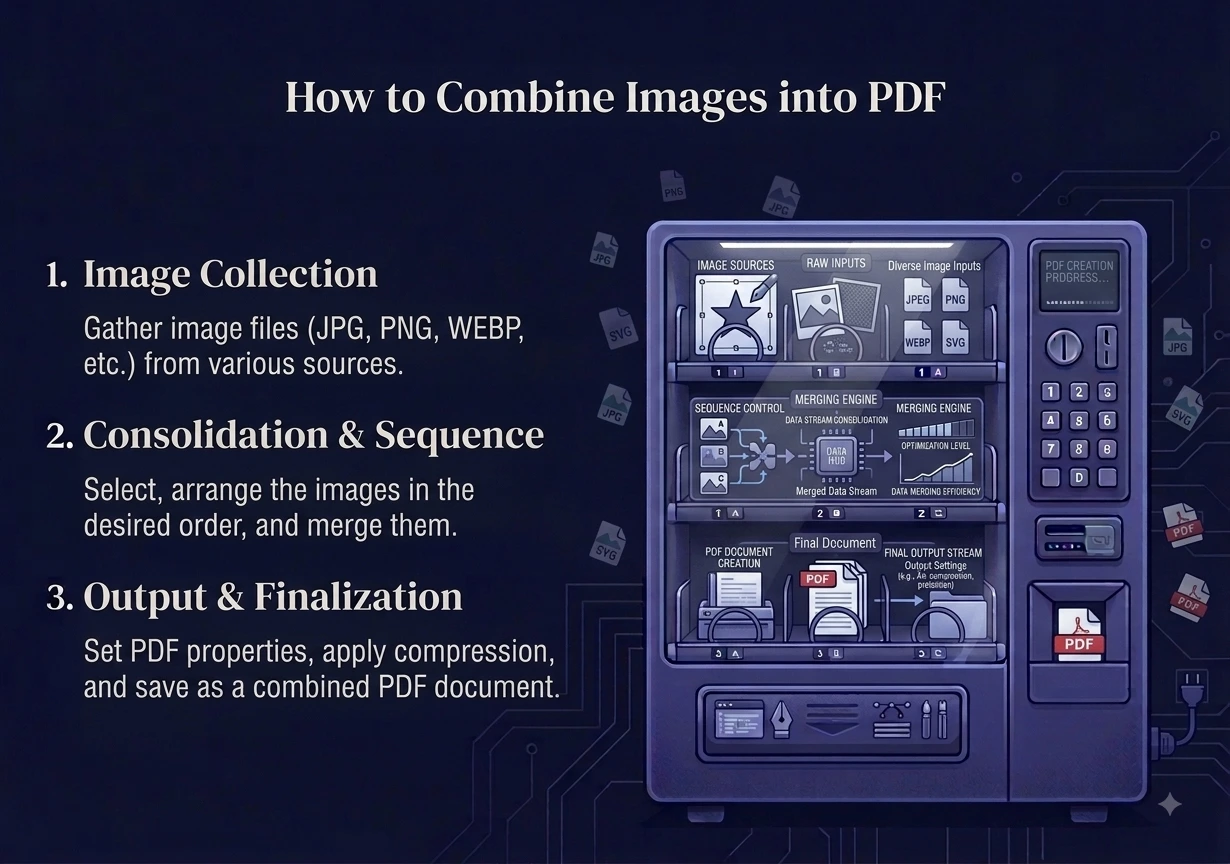
In this guide you will learn why a PDF is the best way to bundle images, how to combine images into PDF step by step, which formats work, and a few tips to get a clean result every time.
Why Combine Images into a PDF?
A PDF keeps many pages inside one file. That makes it perfect for grouping images together. Instead of sending ten separate photos, you send one file. It stays in order, it looks the same on every device, and it is easy to print. You can learn more about the format on the Adobe page about PDF.
Here are common reasons people combine images into PDF:
- Turning scanned pages or receipts into one document.
- Sending a set of photos to a client or teacher as a single file.
- Making a simple portfolio or catalog from pictures.
- Keeping ID cards, tickets, or forms together in one place.
- Printing many images with one click instead of many.
How to Combine Images into PDF (Step by Step)
Our free tool does this right in your browser. Here is how.
- Open our Images to PDF converter.
- Add your images, or drag and drop them in. You can add up to 20 images, and they all become one PDF.
- Arrange them in the order you want. The order you set is the page order in the PDF.
- Click convert.
- Download your single, multi-page PDF.
That is it. Each image becomes its own page, in the exact order you chose. If your photos are all JPG files, you can also use the JPG to PDF tool, which works the same way.
Which Image Formats Can You Use?
You can mix and match common image types. The tool accepts JPG, PNG, WebP, and more. So if you have a folder with a few JPG photos and a couple of PNG screenshots, you can combine them all into one PDF together. There is no need to convert them to the same type first.
If you have HEIC photos from an iPhone, convert them to JPG first with our HEIC to JPG tool, then add them.
Tips for a Clean PDF
A few small choices make a big difference in the final file:
- Set the order before you convert. The upload order becomes the page order, so arrange your images first.
- Use similar orientations. If some photos are wide and some are tall, the PDF pages will vary in shape. Rotate them first if you want a uniform look.
- Check the resolution. Higher-quality images make a sharper PDF, but a larger file. For sharing, medium-size images are usually fine.
- Name the file clearly after you download it, so it is easy to find later.
Is It Safe to Combine Images into a PDF Online?
Yes, on our site it is completely safe. Most tools upload your images to a server to build the PDF. Ours does not. The whole process runs inside your own browser, so your images never leave your device. Nothing is uploaded and nothing is stored. It is free, with no watermark and no account needed. That makes it safe for personal photos, ID documents, and private files.
Frequently Asked Questions
How do I combine images into PDF for free? Add your photos to a free browser tool, arrange them in order, and click convert. You get one PDF with each image as a page, and your files never leave your device.
Can I combine different image types into one PDF? Yes. You can mix JPG, PNG, and WebP images in the same PDF. There is no need to convert them to one format first.
How many images can I put in one PDF? You can combine up to 20 images into a single PDF at once. They become pages in the order you arrange them.
Will the image quality drop in the PDF? No, the images keep their quality inside the PDF. Just remember that higher-quality images make a larger file.
Can I change the page order after adding images? Yes. Arrange the images in the tool before you convert, because the order you set becomes the page order.
Is it safe to make a PDF from private photos? Yes. The whole process runs in your browser, so your images are never uploaded or stored anywhere.
Final Thoughts
To combine images into PDF, all you need is a free browser tool, your photos, and a few seconds. Add the images, set the order, and download one clean PDF. It is the simplest way to bundle pictures, receipts, or scans into a single file you can share or print.
When you are ready, our free Images to PDF and JPG to PDF tools get it done fast. Everything runs in your browser, so your files stay private and never leave your device.