
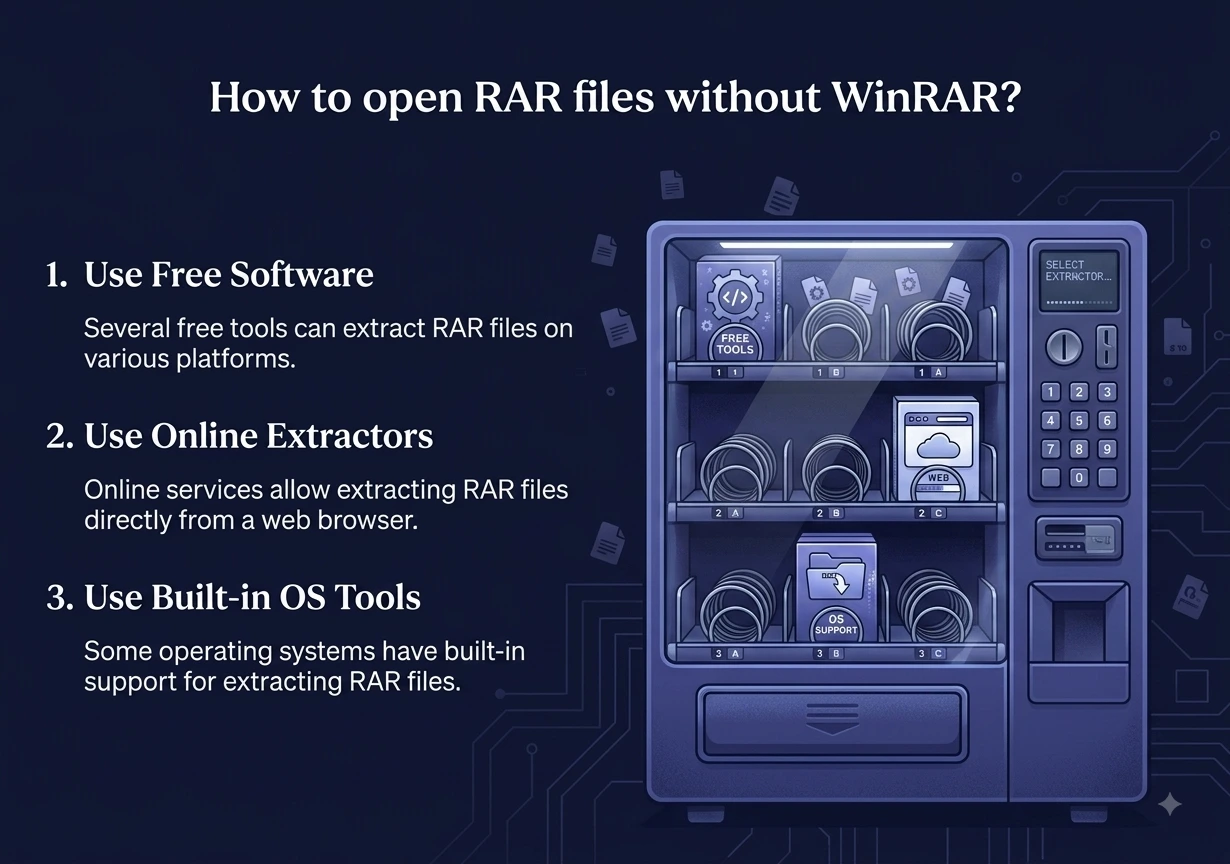
You can open RAR without WinRAR in several free ways, and none of them need a paid tool. If you are on Windows 11, the built-in File Explorer can already do it. If not, a free app like 7-Zip works, or you can open a RAR right in your browser with no install at all.
WinRAR does the job, but it nags you to buy a license after its trial. The good news is you do not need it. In this guide you will learn every free method to open RAR without WinRAR so you can get to your files fast.
What Is a RAR File?
A RAR file is a compressed archive, much like a ZIP file. It bundles many files into one smaller package to save space and make sharing easier. People often use RAR for large downloads because it can split into parts and compress tightly.
The catch is that RAR is a proprietary format. Only WinRAR can create RAR files, which is why so many people end up with one and wonder how to open it without paying for software.
Why Avoid WinRAR?
WinRAR is not bad, but it has one annoying habit. It offers a 40-day trial, and after that it keeps showing a pop-up asking you to buy it. It never fully stops working, but the reminders get old. For a one-time extraction, installing it is overkill. The methods below let you open RAR without WinRAR and skip all of that.
Method 1: Use the Windows 11 Built-In Tool (No Install)
This is the easiest method if you have Windows 11. Since the 23H2 update in late 2023, Windows 11 can open and extract RAR files on its own, with no extra software. Microsoft added this using the open-source libarchive library.
Here is how:
- Find your RAR file in File Explorer.
- Double-click it to see the files inside.
- To pull everything out, right-click the RAR file and choose “Extract All.”
- Pick a folder and click “Extract.”
That is it. No download, no WinRAR. One thing to know: the built-in tool cannot open password-protected RAR files, and it works only on Windows 11, not Windows 10.
Method 2: Use 7-Zip (Free Forever)
If you are on Windows 10 or you want a permanent free tool, 7-Zip is the classic choice. It is completely free and open-source, with no trial and no nag screens. You can get it from the official 7-Zip website.
To use it:
- Install 7-Zip.
- Right-click your RAR file.
- Hover over “7-Zip,” then choose “Extract Here” or “Extract to folder.”
7-Zip also handles dozens of other formats, so it is a handy tool to keep around. Unlike WinRAR, it never asks you to pay.
Method 3: Open a RAR in Your Browser (Nothing to Install)
If you only need a quick extraction and do not want to install anything, this is the fastest way to open RAR without WinRAR. Our free tool extracts the contents of a RAR file right inside your browser.
Use our RAR extractor tool, the all-in-one archive extractor:
- Add your RAR file.
- It extracts the files inside.
- Download the files you need.
The best part is privacy. Everything runs in your browser, so your RAR file never leaves your device. Nothing is uploaded and nothing is stored. One thing to note: like the Windows built-in tool, our extractor does not support password-protected RAR files.
Method 4: For Mac Users
If you are on a Mac, the free app “The Unarchiver” from the App Store opens RAR files with a double-click. Or use the browser method above, which works on any computer, including Mac.
Quick Comparison of the Free Methods
| Method | Install needed? | Password: RAR? | Best for |
|---|---|---|---|
| Windows 11 built-in | No | No | Windows 11 users, quick jobs |
| 7-Zip | Yes (free) | Yes | Windows 10, regular use |
| Browser tool | No | No | Any device, one-time, private |
| The Unarchiver | Yes (free) | Yes | Mac users |
A Note on Password-Protected RAR Files
Some RAR files are locked with a password. The simple free methods above, including the Windows built-in tool and our browser extractor, cannot open these. To extract a password-protected RAR, you need a tool like 7-Zip that includes a password prompt, and of course you must know the password. There is no legal way to open a locked archive without it.
Frequently Asked Questions
How do I open RAR without WinRAR for free? On Windows 11, just double-click the RAR file and use “Extract All.” On Windows 10, install the free 7-Zip. Or open the RAR in your browser with no install at all.
Can Windows open RAR files without any software? Windows 11 can, thanks to a 2023 update. Just double-click the RAR and extract it in File Explorer. Windows 10 cannot, so you need a free tool like 7-Zip.
Is 7-Zip really free? Yes. 7-Zip is completely free and open-source, with no trial period and no pop-ups asking you to pay, unlike WinRAR.
Can I open a RAR file on my phone? Yes. Use the browser method, which works on phones too, or a free archive app from your app store.
Why can’t I open my RAR file? The most common reasons are that you are on Windows 10 without a tool installed, or the RAR is password-protected, or the file is damaged. Try 7-Zip first.
Is it safe to open RAR files online here? Yes. Our extractor runs in your browser, so your RAR file never leaves your device and is never stored anywhere.
Final Thoughts
Learning how to open RAR without WinRAR saves you from a tool that keeps asking for money. On Windows 11, the built-in File Explorer already does it. On Windows 10, free 7-Zip is the reliable pick. And for a quick, private, no-install option on any device, you can open a RAR right in your browser.
Try our free RAR extractor or archive extractor when you just need the files out fast. Everything runs in your browser, so your archive never leaves your device and stays private.