
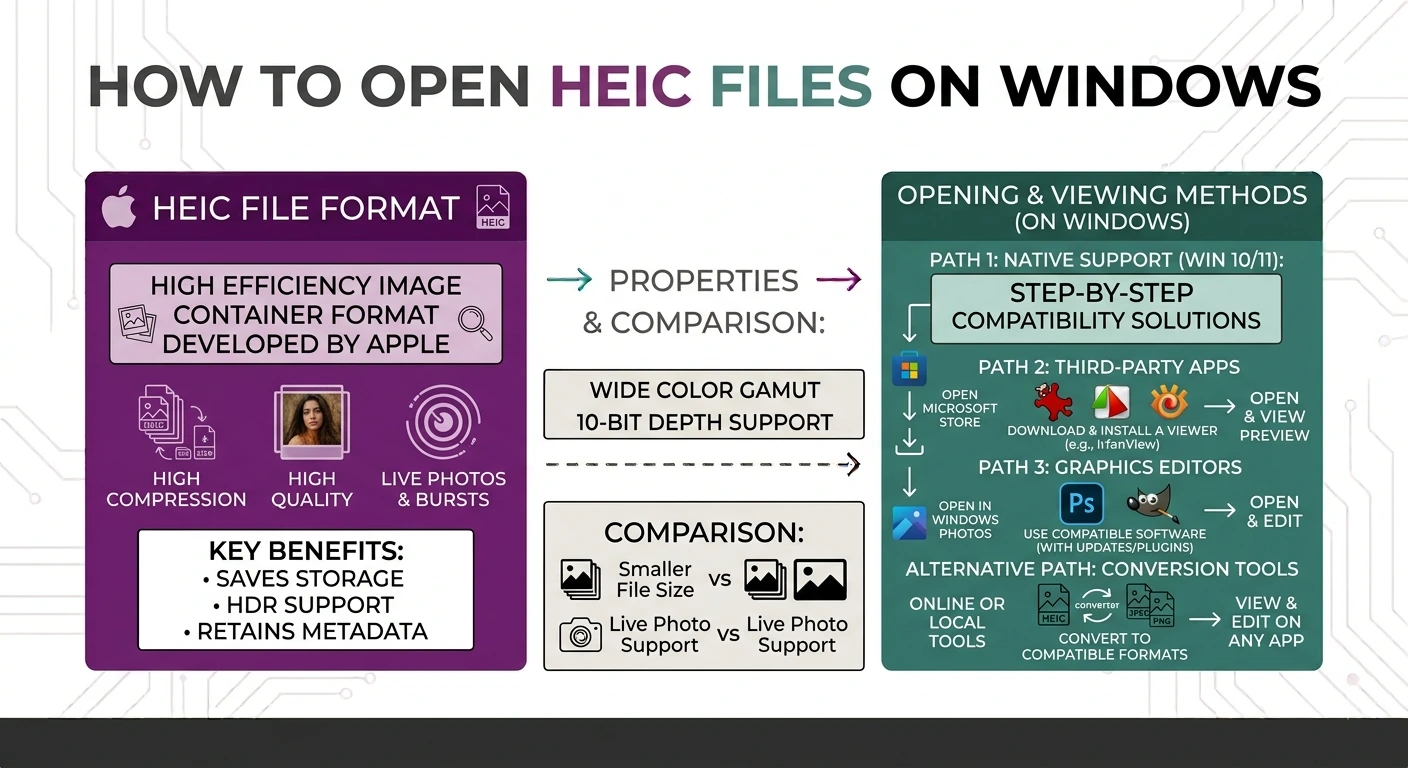
If you want to know how to open HEIC files on Windows, you have two easy options. You can install Microsoft’s free HEIF Image Extensions from the Microsoft Store, or you can convert the HEIC file to JPG so it opens in any app. Both methods are simple, and one of them needs no download at all.
HEIC is the photo format your iPhone uses by default. It saves space and keeps great quality, but Windows does not always open it out of the box. If you copied photos from an iPhone and Windows showed a blank preview or an error, this guide will fix that. You will learn how to open HEIC files on Windows step by step, why the problem happens, and the fastest free way around it.
What Is a HEIC File and Why Windows Struggles With It
HEIC stands for High Efficiency Image Container. Apple started using it on the iPhone with iOS 11 in 2017. It is based on the HEIF standard and uses HEVC compression, which is the same technology used in some high-quality videos. You can read Apple’s own explanation on the Apple Support HEIF page.
The format has real benefits. An HEIC photo is usually about half the size of a JPG at similar quality. That means you fit more photos on your phone without losing detail.
The problem is support. Apple devices open HEIC with no effort. Windows does not ship the needed codec by default. So when you try to open HEIC files on Windows, the Photos app often shows a message saying an extension is required, or you just see a blank thumbnail. This is not a broken file. It is a missing piece that Microsoft chose to leave out.
Method 1: Install the Free HEIF Image Extension
This is the official fix, and the main part is free. Once installed, Windows Photos and File Explorer can show HEIC files just like normal photos, including thumbnail previews.
Follow these steps to open HEIC files on Windows with the codec:
- Open File Explorer and find your HEIC file.
- Right-click the file, choose “Open with,” then click “Photos.”
- The Photos app will show a message that the HEIF image extension is required. Click the “Download and install it now” link.
- This opens the Microsoft Store on the HEIF Image Extensions page. Click “Get” to install it. This part is free.
- Go back to File Explorer and double-click your HEIC file. It should now open in Photos.
There is one detail to know. Some iPhone HEIC photos also need the HEVC Video Extensions to display the actual pixels because the image data is compressed with HEVC. That second extension usually costs about $0.99 in the Microsoft Store, since Microsoft has to license the HEVC codec. Some PC makers like Dell, HP, and Lenovo pre-install a free version called “HEVC Video Extensions from Device Manufacturer,” so check your store first before paying.
If your work computer blocks the Microsoft Store, which is common on managed office devices, this method will not work at all. In that case, jump to Method 3.
Method 2: Convert HEIC to JPG Using Paint
If you already installed the HEIF extension from Method 1, Windows Paint can convert HEIC to JPG for you. This is handy when you only need a normal photo file to email or upload.
- Right-click your HEIC file in File Explorer.
- Choose “Open with,” then select “Paint.”
- In Paint, click “File,” then “Save as.”
- Choose “JPEG picture” as the file type.
- Pick a folder, name the file, and click “Save.”
You now have a standard JPG that any app or website can read. The catch is that Paint handles one file at a time, so it gets slow if you have a whole camera roll to convert.
Method 3: Convert HEIC to JPG in Your Browser (No Install)
This is the easiest method, and it works even when the first two do not. You do not need any codec, any purchase, or any admin rights. It works on any Windows PC, including locked-down office computers.
Use our free HEIC to JPG converter. Here is how:
- Open the tool and add your HEIC files, or drag and drop up to 10 at once.
- The files convert right away.
- Download your new JPG images, or grab them all in one ZIP.
If you need transparency or sharp edges kept, use our HEIC to PNG converter instead. And if you want to save the photos as a document to print or share, our HEIC to PDF tool turns them into a single PDF.
The best part is privacy. Everything happens inside your own browser. Your HEIC photos never leave your device; nothing is uploaded, and nothing is stored anywhere. That makes it safe for personal and private pictures.
Which Method Should You Choose?
Here is a quick way to decide how to open HEIC files on Windows for your situation.
| Your situation | Best method |
|---|---|
| You want HEIC to open normally in Photos forever | Method 1: install the HEIF extension |
| You need one or two JPG copies fast | Method 2: convert in Paint |
| Your PC blocks the store, or you want no installation. | Method 3: convert in your browser |
| You have many HEIC files to convert at once | Method 3: batch convert and download as ZIP |
A Quick Note on Live Photos
If your HEIC came from an iPhone Live Photo, Windows only shows the still frame and ignores the motion. The moving part is technically inside the file, but Windows does not play it. To keep the motion, you would need to send the Live Photo to a Mac or use a special tool. For a normal still photo, any of the three methods above works fine.
Frequently Asked Questions
Why can’t Windows open my HEIC files? Windows does not include the HEIC codec by default. You either need to install the HEIF Image Extension from the Microsoft Store or convert the HEIC file to JPG.
Is the HEIF Image Extension free? The HEIF Image Extension itself is free. Some HEIC photos from an iPhone also need the HEVC Video Extension, which usually costs about $0.99, though some PC brands pre-install a free version.
How do I open HEIC files on Windows without downloading anything? Use a browser-based converter. Our free HEIC to JPG tool changes the file into a JPG right in your browser, with no install and no upload.
Can I open many HEIC files at once? Yes. Our converter lets you add up to 10 files at a time and download them all in one ZIP. This is much faster than opening each one in Paint.
Will converting HEIC to JPG lower the quality? There is only a tiny quality change, and most people never notice it. If you want to avoid any loss, convert to PNG instead.
Are my photos safe when I convert them online here? Yes. On our site, the conversion runs inside your browser. Your HEIC files never leave your device, so your photos stay private.
Final Thoughts
Now you know how to open HEIC files on Windows without any stress. If you want HEIC to open like any other photo from now on, install the free HEIF Image Extension from the Microsoft Store. If you just need a JPG copy, or if your PC blocks the Store, the browser method is faster and needs nothing at all.
When you want the quickest route, try our free HEIC to JPG or HEIC to PNG converter. Both run fully in your browser, so your photos never leave your device and stay completely private.